
The wall
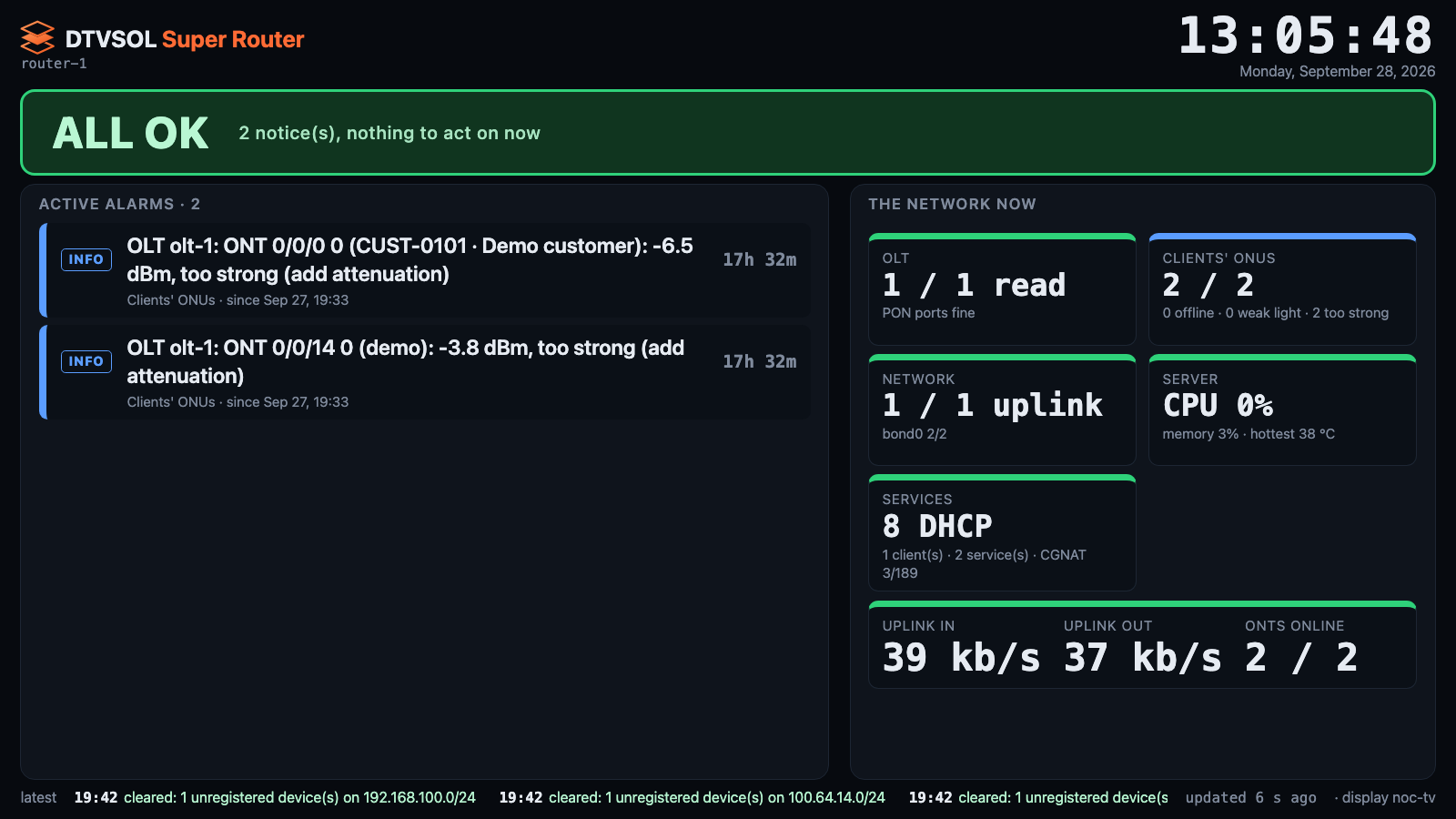
The wall is https://<router>:8881/wall: one page, dark, large, readable from across the room,
with nothing to click. It is made for a TV in the support room that stays on day and night.
What it shows
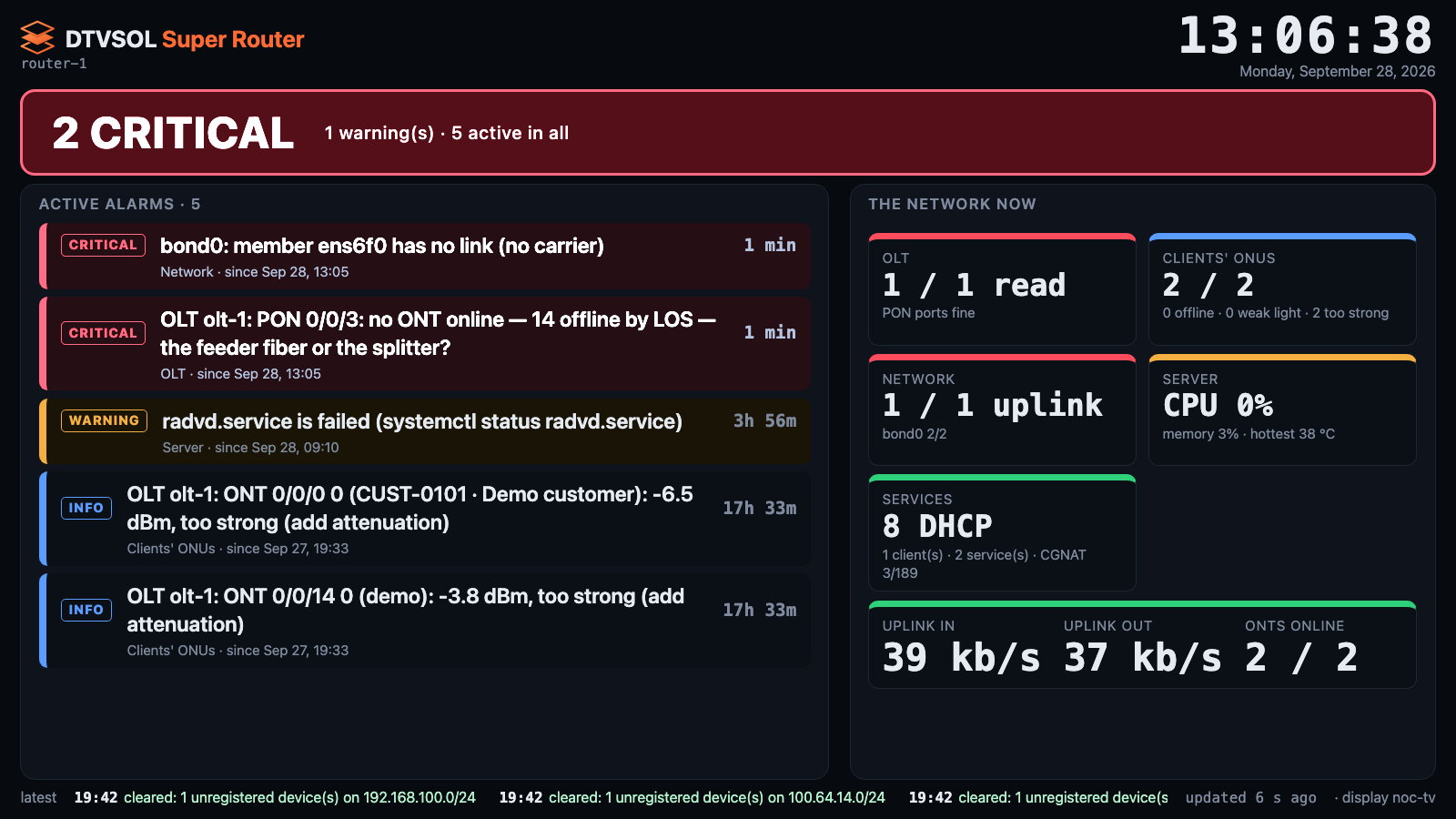
Section titled “What it shows”- The band at the top, the one thing to look at:
- ALL OK (green), with any notices counted;
- N WARNINGS (amber);
- N CRITICAL (red, pulsing);
- NO CONTACT WITH THE ROUTER (purple) when the router has not answered for a minute. The rest of the page greys out, so an old picture is never mistaken for a good one.
- Active alarms, worst and oldest first, up to eight, with the area and how long each has lasted. Alarms raised in the last 10 minutes pulse.
- The network now: a tile per area (OLT, Clients’ ONUs, Network, Server, Services) coloured by its worst alarm, and the uplink traffic in and out and the ONTs online in large numbers.
- Latest: the last raises and clears along the bottom, with the time of the last update and the screen’s name.
- The clock and the date.
Who can open it
Section titled “Who can open it”- A screen with a display key. The key shows the wall and nothing else. It cannot change anything and does not expire until you revoke it.
- Any signed-in monitor user.
The screen’s address must also be on the allow-list (dtvsol protect add).
Display keys
Section titled “Display keys”dtvsol monitor wall add support-tv # prints the link to open once on the screendtvsol monitor walls # the screens with a keydtvsol monitor wall del support-tv # revoke itOnly a hash of the key is kept on the router. Opening the link stores the key in that browser as
a cookie, and the page moves to /wall. A revoked screen shows THIS SCREEN’S KEY WAS REVOKED
at its next refresh. For a new key, delete the old one and add it again.
Behaviour for a 24/7 screen
Section titled “Behaviour for a 24/7 screen”- It reads the router every 15 seconds.
- It asks the browser to keep the screen awake, where the browser allows it.
- It moves the picture by a few pixels every 10 minutes, so a TV does not keep the image.
- It reloads itself about once a day to pick up a new version, but only while the router answers.
For the full setup on a TV, with kiosk mode, see Alarms and the wall.
This site was written with the help of AI and checked by our team.